First boot
The five things to set before you carry it: Wi-Fi, a location, a PIN, an encrypted card, and, if you have one, your server.
1. Join Wi-Fi
Press x on Home for Settings, open Wi-Fi and sync, and choose Network. Pick a network, type its password and press Enter. Save your phone's hotspot here too, so the device works when you are out.
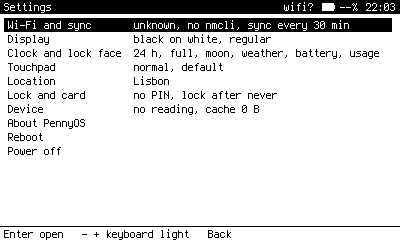
Settings, top level. Each group shows a one line summary of what is inside.
2. Set a location
The Beepy has no GPS, so Weather, Field, Store and the display's sunrise schedule all read one saved fix. Two ways to set it:
- Settings > Location > Location: type a place name and PennyOS looks it up, or enter coordinates.
- Settings > Location > Locate: estimates the fix from the Wi-Fi networks around you. Only a Wi-Fi based fix is applied. A city level guess from your internet address is shown but never saved, because it can be off by a whole city.
Add places you go often. The same list appears in Weather and Field under l.
3. Set a PIN
Settings > Lock and card > PIN. Use at least six characters, letters and digits. Once set, PennyOS asks for it at every boot, before the terminal, when you open Journal, and after a quiet spell you choose under Lock after. Wrong answers wait longer each time, doubling from two seconds to a minute.
Press l on Home, or tap the side button, to lock at any time.
4. Encrypt the card
A PIN stops someone at the keyboard. Encryption stops someone who pulls the card. Run this once on the device:
On the Beepy
sudo ~/pennyos/tools/encrypt-card.shIt moves the data directory, /var/lib/pennyos, into a LUKS2 volume using the Adiantum cipher, and puts the device's SSH key inside it. At first it opens with a random keyfile stored on the card so nothing breaks, which means the encryption protects nothing yet, and Settings > Lock and card > Card says "key still on the card".
Now set or re-enter your PIN. PennyOS enrols it as the volume's passphrase and deletes the keyfile. From then on the card opens only with your PIN.
Forget the PIN, lose the data
There is no recovery. Notes and journal entries that have not synced to your server are gone. The vault mirror and caches can be fetched again.
If typing the PIN at every boot is too much at home, your server can hold a second key that opens the card automatically when the device is on your network. You still type the PIN to unlock the shell. See Security.
5. Connect your server
If you have a server, the installer printed the device's public key. Add it to the server behind the gate, set mini_host, mini_user and vault_path in /etc/pennyos.conf, then press s on Home to sync. The full steps are in Server setup.
Without a server, skip this. Notes, Journal, Weather, Field, News, Store, Keys, Clock and Solitaire all work.
A few settings worth a look
| Setting | Where | Why |
|---|---|---|
| Display | Display | White on black, black on white, or auto, which follows sunrise and sunset at your fix. |
| Font | Display | Regular or bold, in three sizes. Every list reflows. |
| Home theme | Display | grid, os8, win95 or terminal. |
| Keyboard light | Display | Level, and how long before it turns off. |
| Touchpad | Touchpad | Speed, and whether it stays on, turns off on Back, or only clicks. |
| Auto sync | Wi-Fi and sync | Every 15, 30 or 60 minutes, or never. |