Everyday use
How to move around PennyOS: the keys that always mean the same thing, Home and its menus, the terminal, the clock face, and the lock.
Four rules that hold everywhere
- Every app has a letter. Press it on Home to open the app.
- Back goes up one screen. On Home it does nothing, so you can never back out of the OS by accident.
- Hold End Call for one second to go Home from anywhere.
- The clock and the lock can interrupt anything, and the lock takes every key until the PIN is right.
Moving around
The Beepy has no arrow keys. Two ways to move:
- Meta mode. Press Berry, then E S D W are up, left, down and right, and R F O P are Home, End, Page Up and Page Down. Back leaves Meta mode.
- The touchpad. Click it to turn it on, swipe for arrows, click again for Enter. Its speed and behaviour are under Settings > Touchpad.
Enter selects. Alt types the symbols printed on the keys, and Alt+Enter is Tab. Hold Sym for a second to see the symbol map. The Keys app shows all of this on the device.
Home
Home is a grid of every app with its jump letter. A number on an icon counts something waiting, such as new mail. A ! means Journal has nothing written today, or a Claude usage limit is past 80 percent. The line at the bottom reads only from caches: the date, the weather, usage, and how many items are overdue in your vault.
| Key on Home | Does |
|---|---|
| a to x | Open the app with that letter. |
| s | Sync with your server now. |
| l | Lock. |
| c | Open the clock face. Clock is not on the grid, but its key works. |
| Space | In the os8 and win95 themes, open the Finder or Start menu. |
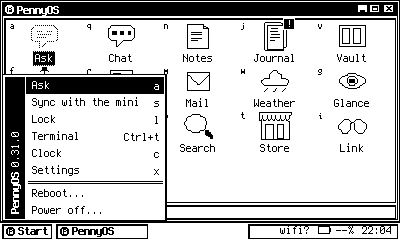
The Start menu in the win95 theme. Both menus hold Ask, Sync, Lock, Terminal, Clock, Settings, Reboot and Power off, each with its key.
The terminal
Press Ctrl+t, after the PIN, to hand the screen to a tmux session on tty1. Call is the Control key. To come back, press the tmux prefix, which is End Call, then p. Pressing Ctrl+t again does not return, because while tmux has the screen the shell is not reading keys.
If the shell ever crashes, the Beepy is still a Beepy: log in on tty1 and everything underneath works.
The clock face
After three quiet minutes the screen becomes a clock with the date, battery, tonight's moon and the weather. Any key returns to where you were, and that key is not passed on to the app. A memory LCD costs almost nothing to leave lit, so the face is always on rather than blank. Choose what it shows under Settings > Clock and lock face.
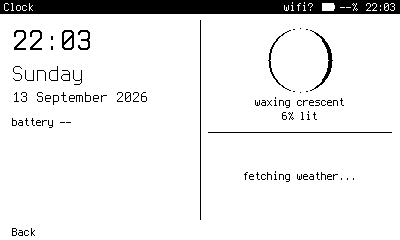
The clock face. It redraws once a minute, not once a second. The weather half was still fetching when this frame was taken.
The side button and the LED
- Tap the side button to lock. On the lock screen, a tap only wakes the display.
- Double tap to turn the LED full white as a torch, and again to turn it off.
The LED otherwise follows fixed rules: blue while a sync runs, green for twenty seconds when a sync brings new mail or news, amber while something in your vault is overdue, and a red blink under fifteen percent battery. Pressing any key turns it off.
Boot is resume
The Pi cannot suspend, so turning the Beepy off is a shutdown and turning it on is a boot of about eight seconds. PennyOS remembers the app you were in and opens it again after the PIN. Shut down in Mail, come back in Mail.
Shut down with the power switch
Holding End Call for five seconds also shuts down, but after a long sleep that way the touchpad can wake up dead. The switch cuts power to everything and never does this. Settings > Power off is fine too.